
Redirect visitors to another URL after a webinar or live event ends. When a redirect URL is set on a room, all non-admin users are automatically sent to the specified destination the moment they visit the room — perfect for sending late-joining or returning visitors to a replay page, sales page, or registration form.
The redirect works at the server level, meaning visitors never see the room page at all. As soon as someone opens the room URL, they are immediately taken to the destination you configured. This happens for both unauthenticated visitors (people who aren’t logged in) and regular logged-in members. Only admins and moderators bypass the redirect so they can continue managing the room.
If users are already viewing the room when you activate a redirect, they will be redirected in real time — no page refresh needed.
Admins and moderators can still access the room normally and will see a Redirect Active badge in the navigation bar as a visual reminder that visitors are being redirected.
Prerequisites
- An admin account with room editing permissions
- An existing room where you want to configure the redirect
Setting Up a Room Redirect
Objective: Configure a redirect URL so that non-admin visitors are automatically sent to another page when they visit the room.
- Navigate to the room you want to configure
- Click the Settings gear icon in the top navigation bar
- In the Room Controls panel, scroll down and click the Redirect section to expand it
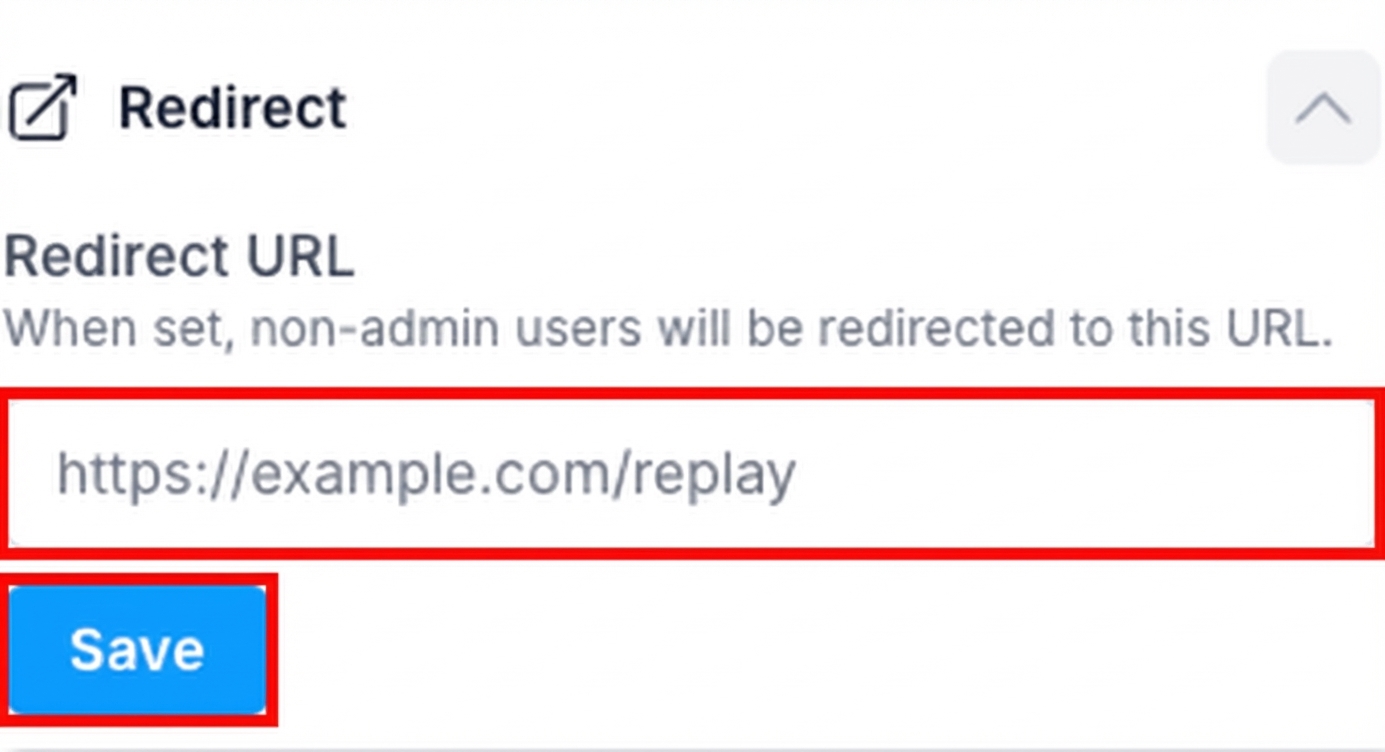
- Enter the full URL where visitors should be redirected (e.g.,
https://yoursite.com/replay) - Click Save
Expected Result: The redirect is now active. Any non-admin user who visits this room will be automatically redirected to the URL you entered. Users who are already on the room page will also be redirected in real time.
Pro Tip: The redirect takes effect immediately — even for users who are already on the room page. They will be redirected in real time as soon as you save the URL.
Identifying an Active Redirect
When a redirect is active on a room, admins will see a red Redirect Active badge in the top navigation bar next to the room name. This badge is only visible to admin users while viewing the room.
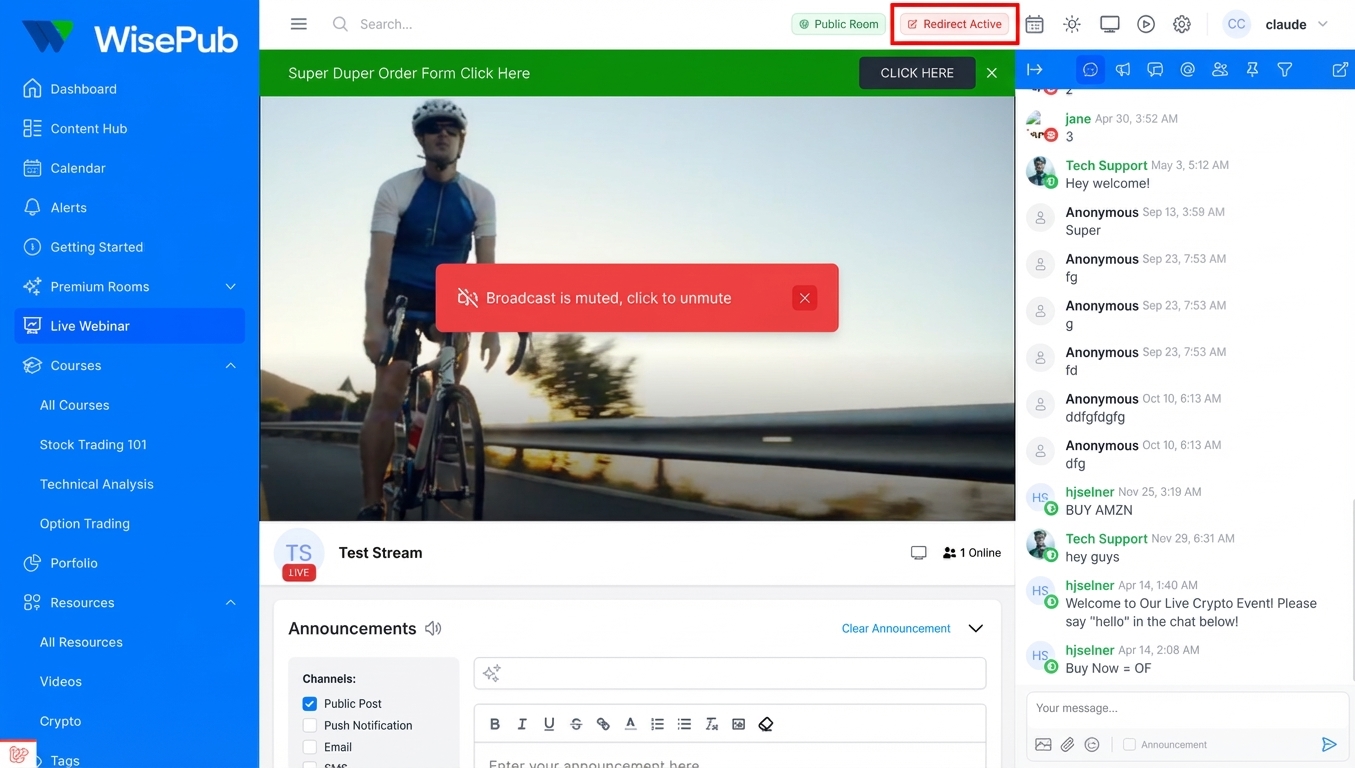
Pro Tip: The badge serves as a reminder that visitors are being redirected. If you no longer need the redirect, clear it from the Room Controls panel.
Clearing a Redirect
Objective: Remove the redirect so visitors can access the room normally again.
- Navigate to the room with the active redirect
- Click the Settings gear icon in the top navigation bar
- Expand the Redirect section
- Click Clear to remove the redirect URL, or manually delete the URL from the text field and click Save
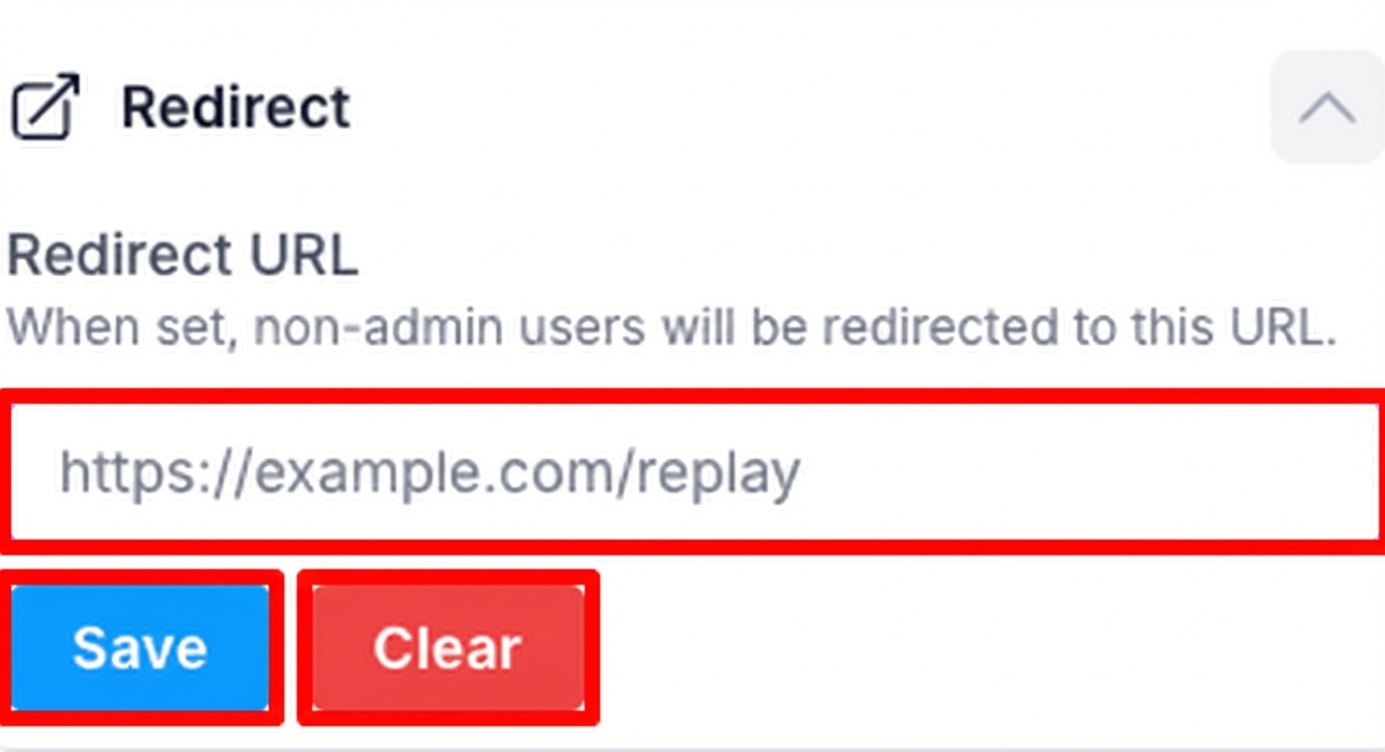
Expected Result: The redirect is removed. Visitors can now access the room normally.
Who Gets Redirected?
The redirect applies to everyone except users with admin-level access. Here’s a breakdown:
| User Type | Behavior |
|---|---|
| Unauthenticated visitors | Redirected — sent to the destination URL immediately |
| Logged-in members (without admin access) | Redirected — sent to the destination URL immediately |
| Admins and moderators | Not redirected — see the room normally with a “Redirect Active” badge |
This means that after your webinar ends, any visitor who clicks the room link — whether they’re a subscriber, a free member, or someone who isn’t logged in — will be automatically taken to whatever page you’ve configured (e.g., a replay page, a sales page, or a registration form for your next event).
Tips & Best Practices
- Post-webinar replays: Set the redirect URL to a replay page after your live event ends, so late visitors automatically see the recording instead of an empty room
- Sales funnels: Redirect room visitors to an order form or special offer page after a product launch webinar
- Event registration: Point visitors to a registration page for your next upcoming event
- Always use full URLs: Include
https://at the beginning of your redirect URL (e.g.,https://yoursite.com/page, notyoursite.com/page) - Test before going live: Open the room URL in an incognito/private browser window to verify the redirect works correctly before your event ends
Summary
The Room Redirect feature gives you full control over where visitors go after your live events. Set a redirect URL in the Room Controls panel, and non-admin users will be automatically sent to your chosen destination. The redirect works instantly — both for new visitors arriving at the room and for users already on the page. Admins always retain access and can see the redirect status via the red badge. Clear the redirect at any time to restore normal room access.
Related Features
- How to create a room for chat and/or streaming – Set up the room before configuring a redirect
- How to Set Up URL Redirects in WisePub – Global path-based redirects for non-room URLs
- Auto-Record for Rooms – Automatically capture your streams so you have a replay to redirect visitors to
- How to use WisePub Session and Track Webinars – Track attendance and engagement for your live events