
Bookmarks are your personal shortlist inside WisePub. Whenever you find a post, course, or lesson you want to revisit a training you’re working through, an article you plan to reread, a lesson you want to finish tomorrow one click saves it, and it’s waiting for you the next time you log in.
No more digging through the site or losing track of where you left off. Your bookmarks live in one tidy list, sorted the way you want, and organised by type so you can jump straight back to what matters.
What You’ll Learn
By the end of this guide, you’ll know how to:
- Bookmark any post, course, or lesson
- Find your saved items on your Bookmarks page
- Filter your bookmarks by content type
- Remove a bookmark you no longer need
Bookmarking Something
Anywhere you see a bookmark icon on a post, course, or lesson, a single click saves it to your list.
- Open the post, course, or lesson you want to save.
- Click the bookmark icon. When it fills in, the item is saved.
- Click it again at any time to remove the bookmark.
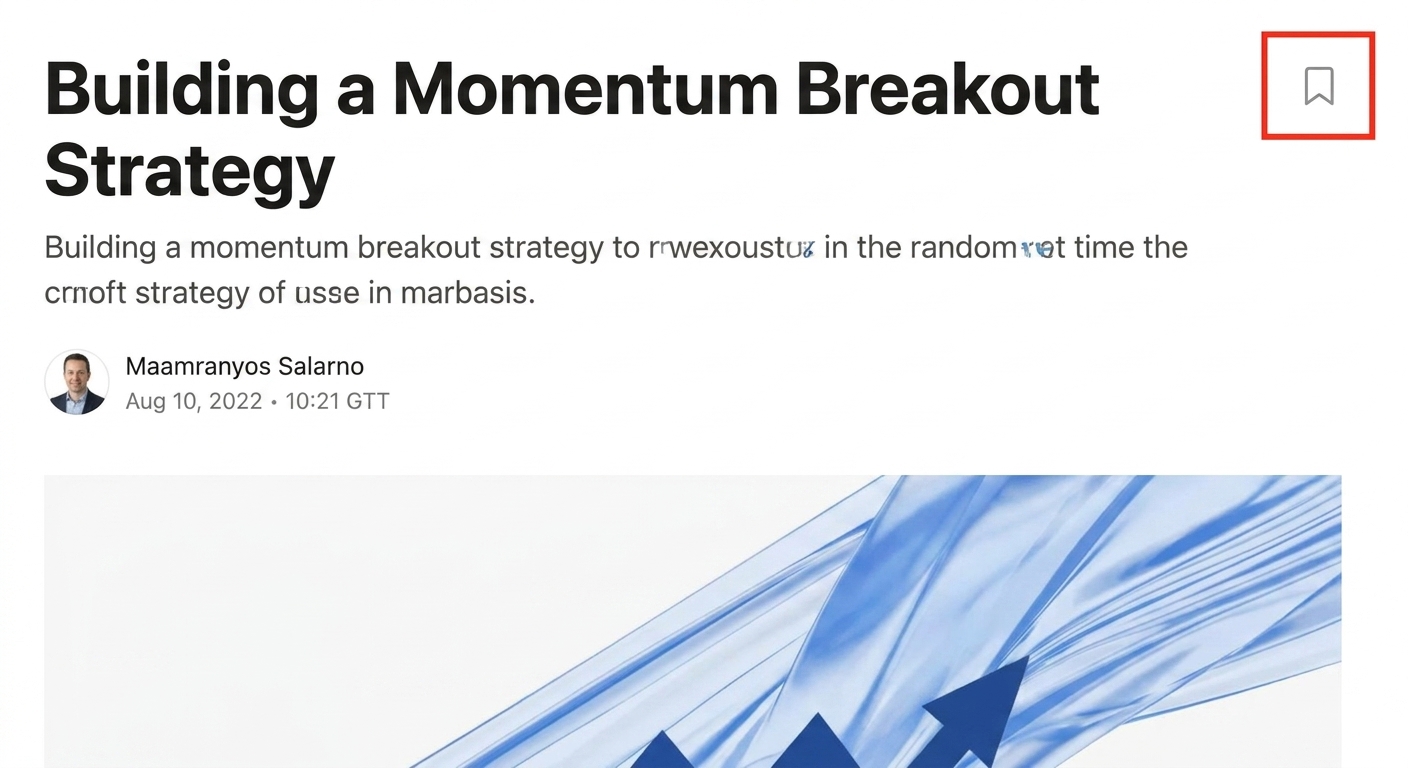
> Expected Result: The icon switches to its filled state and the item is instantly added to your Bookmarks page. No save button, no confirmation dialog it’s just done.
Pro Tip: You can bookmark items as you browse without breaking your flow. Save anything that looks interesting, then triage your list later from your Bookmarks page.
Finding Your Bookmarks
Your saved items live on your personal Bookmarks page. You can get there from your user menu or profile area at any time.
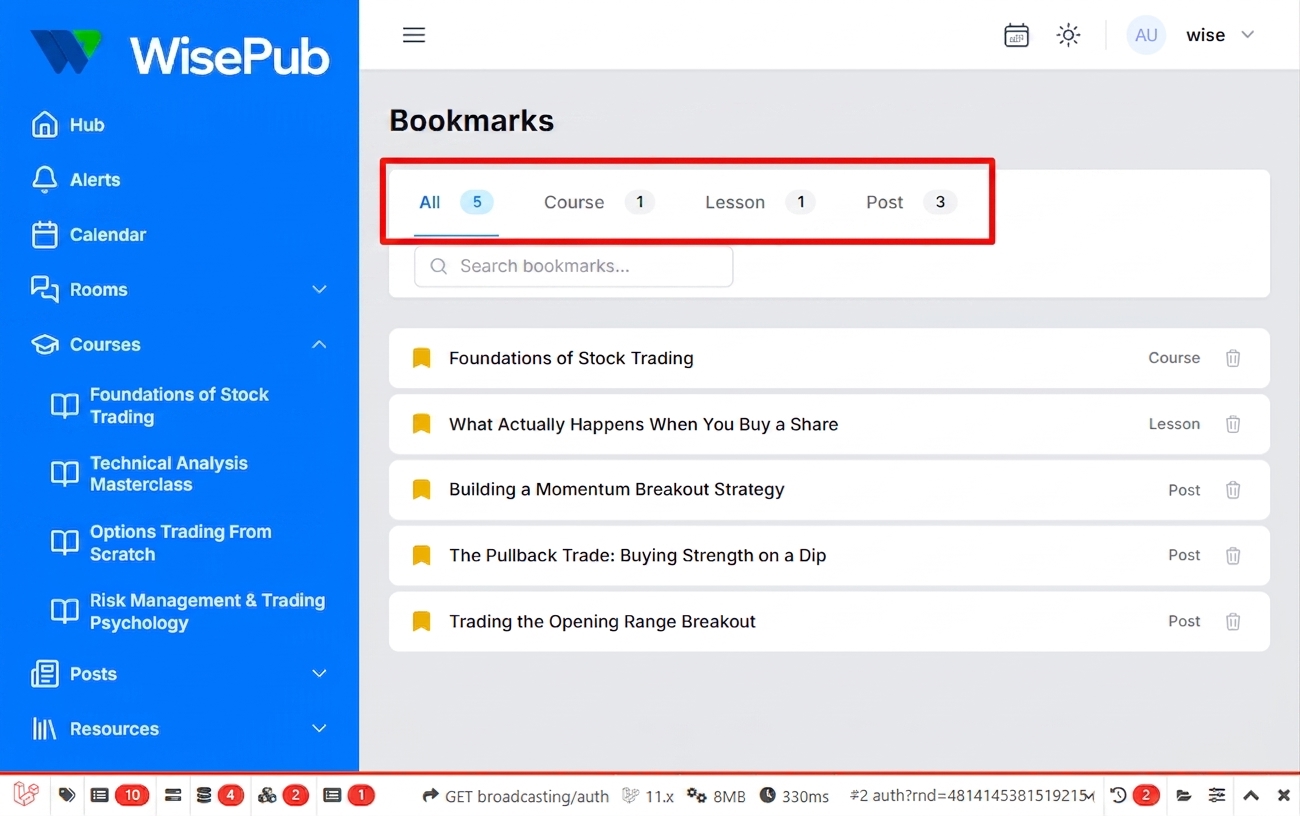
Each bookmark shows a preview of the item its title, image, and enough context to know what it is at a glance. Click any bookmark to open the full content.
Filtering by Type
At the top of your Bookmarks page, you’ll see filter tabs for the different content types you’ve saved:
- All every bookmark, mixed together
- Posts only saved articles and posts
- Courses only saved courses
- Lessons only saved lessons
Click a tab to narrow the list. A count next to each tab tells you how many bookmarks fall into that group.

> Expected Result: The list below updates instantly to show only bookmarks of the chosen type.
Removing a Bookmark
There are two ways to remove something from your list:
- From the Bookmarks page click the bookmark icon on any saved item to remove it. It disappears from the list right away.
- From the content itself open the post, course, or lesson and click the (now filled) bookmark icon to un-save it.
Pro Tip: Removing a bookmark only removes it from your list. It has no effect on the content itself, and doesn’t affect anyone else’s bookmarks.
Tips & Best Practices
- Bookmark liberally, prune later. It’s faster to save anything interesting and clean up your list occasionally than to decide in the moment whether something is worth keeping.
- Use the type filters when your list grows. Once you’ve saved a mix of posts, courses, and lessons, the filter tabs make finding a specific type much faster than scrolling.
- Bookmarks are private to you. Nothing on your Bookmarks page is visible to other users, so save whatever you like without worrying about how it looks.
Summary
Bookmarks give you a personal, always-available shortlist of the content you want to come back to:
- Click the bookmark icon on any post, course, or lesson to save it.
- Visit your Bookmarks page to see everything you’ve saved.
- Filter by Posts, Courses, or Lessons to narrow the list.
- Click the icon again from anywhere to remove a bookmark.
It’s a small feature that quietly makes WisePub feel like *your* WisePub.