
Private Chat is a per-room mode that changes how chat visibility works. When enabled, attendees see only their own messages and the messages sent by moderators they can’t see what other attendees are saying. Moderators see everything and can choose to publish any private message to the whole room.
This is ideal for Q&A sessions, coaching calls, help desks, and live events where you want attendees to ask questions freely without their questions being visible to everyone else.
What You’ll Learn
By the end of this guide, you’ll know how to:
- Enable Private Chat on a room
- Understand what each participant sees when Private Chat is on
- Publish an attendee’s private message to the whole room
- Recognize the Private mode indicator in the chat header
Prerequisites
Before enabling Private Chat, ensure you have:
- Moderator access to the room (permission to change chat settings)
- A room with chat enabled
Understanding Private Chat
Private Chat changes the visibility rules for new messages in a room:
- Attendees and guests Everything they send is private. They see their own messages plus every message a moderator sends.
- Moderators Their messages are public by default (visible to everyone). Moderators see every message from every participant, including all the private ones.
- Moderator mentions If a moderator @mentions a specific person, that reply is sent privately to that person. Using `@everyone` keeps the reply public. Replying to a quoted message inherits the privacy of the original.
Turning Private Chat off later does not retroactively expose past private messages they remain hidden from other attendees.
Pro Tip: Private Chat is perfect for teaching, coaching, and support scenarios where attendees may be uncomfortable asking questions in front of a large audience. It removes the fear of “asking a silly question” while still letting the moderator share great questions with the whole room using Make Public.
Step 1: Open the Room
Navigate to the room where you want to enable Private Chat.
Step 2: Open the Settings Panel
In the room controls, click the Settings (gear) icon to open the room settings slide-over.
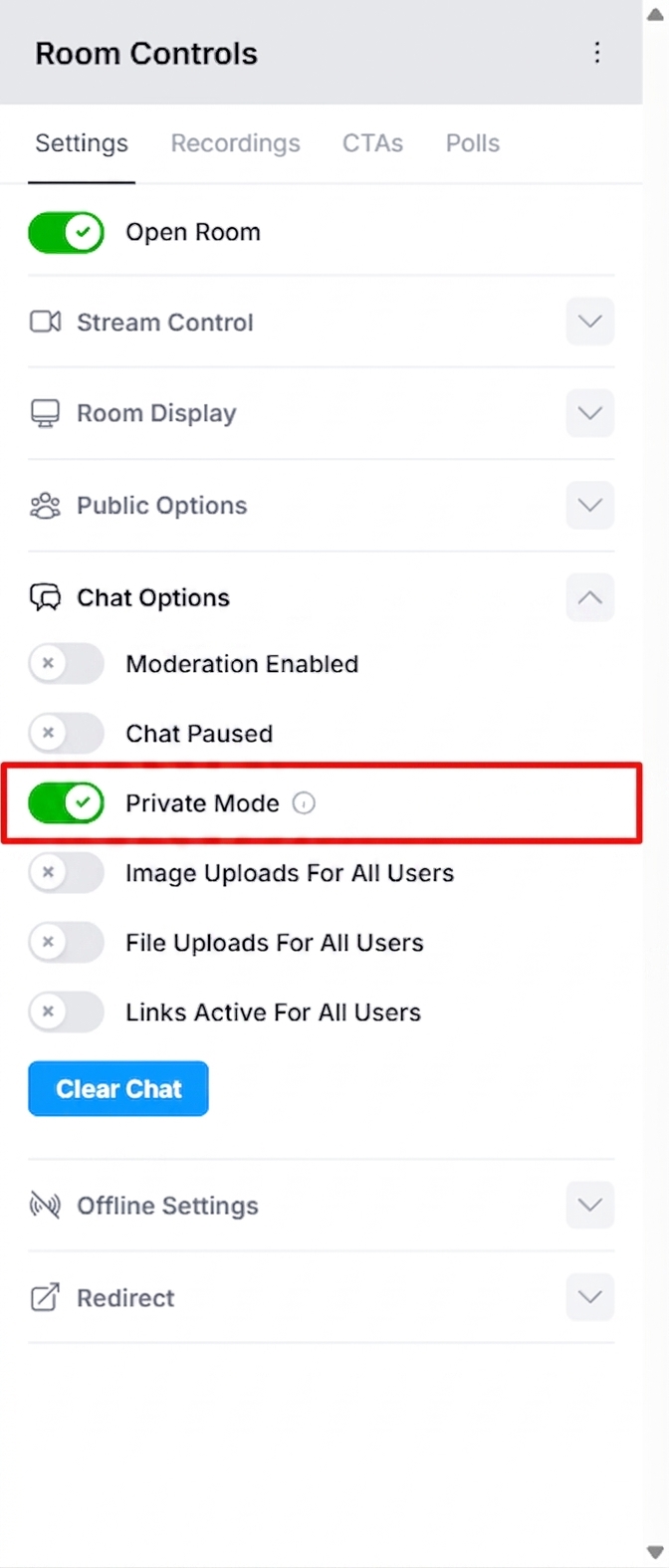
> Expected Result: A settings panel slides in from the right with a list of chat-related toggles.
Step 3: Toggle Private Mode On
In the settings panel, find the Private Mode toggle and switch it on.
The tooltip beside the toggle reads:
> Attendees only see moderator messages and their own. Moderators see everything and can make any message public.
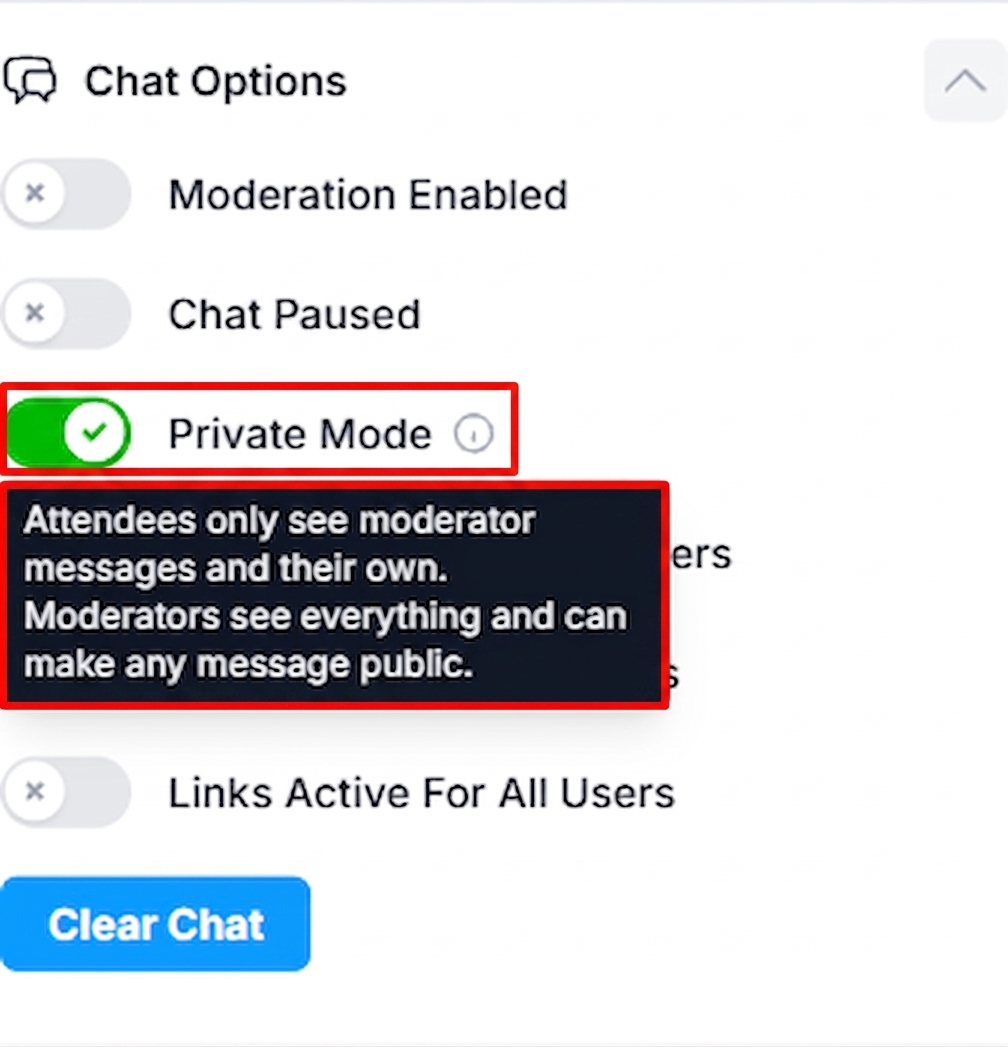
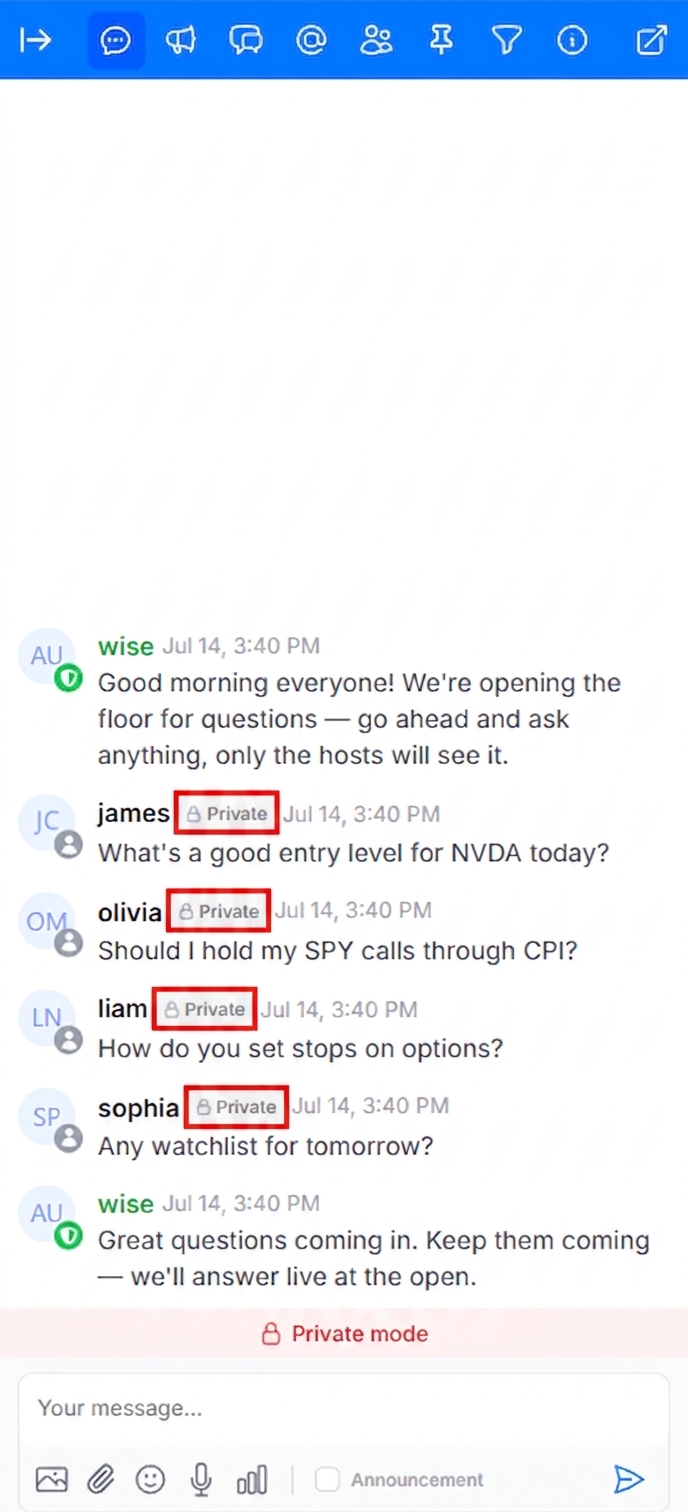
> Expected Result: The setting saves automatically. A red banner appears at the top of the chat area with a padlock icon and the text Private mode, so moderators can see at a glance that Private Chat is active.
Step 4: See the Private Mode Indicator
Once Private Chat is on, moderators see a small red banner above the chat input:
- A padlock icon
- The label Private mode
If the room is also paused, both indicators appear side by side.
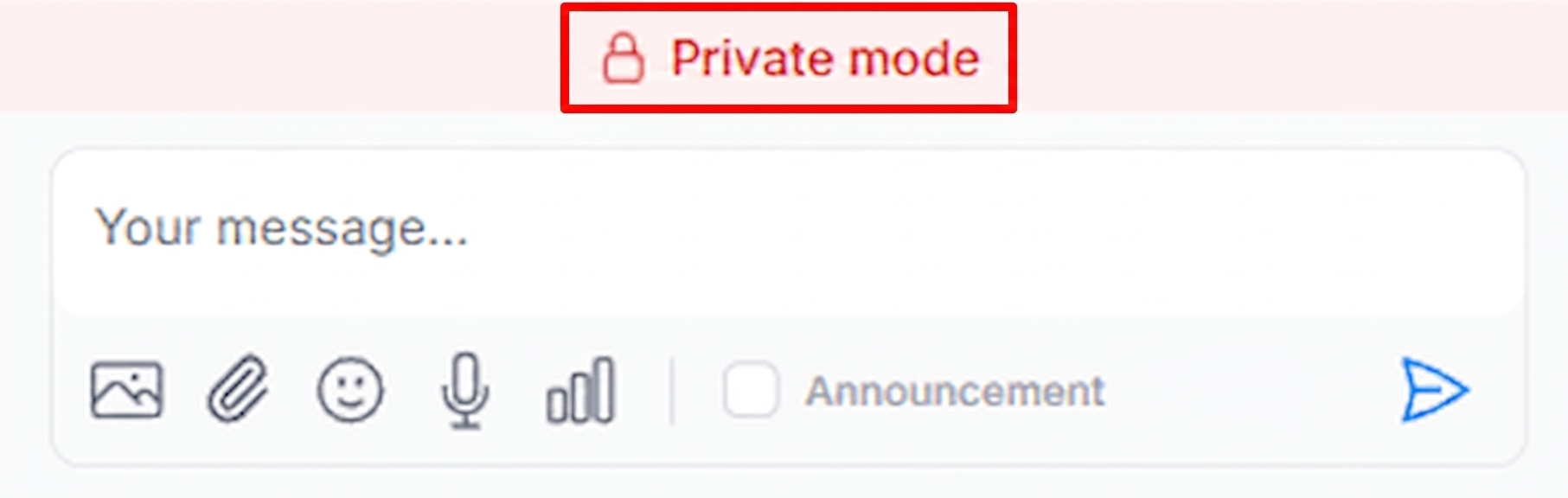
Pro Tip: The banner is only visible to moderators. Attendees do not see it, so the experience feels like a normal chat to them — they simply don’t see other attendees’ messages.
What Attendees See
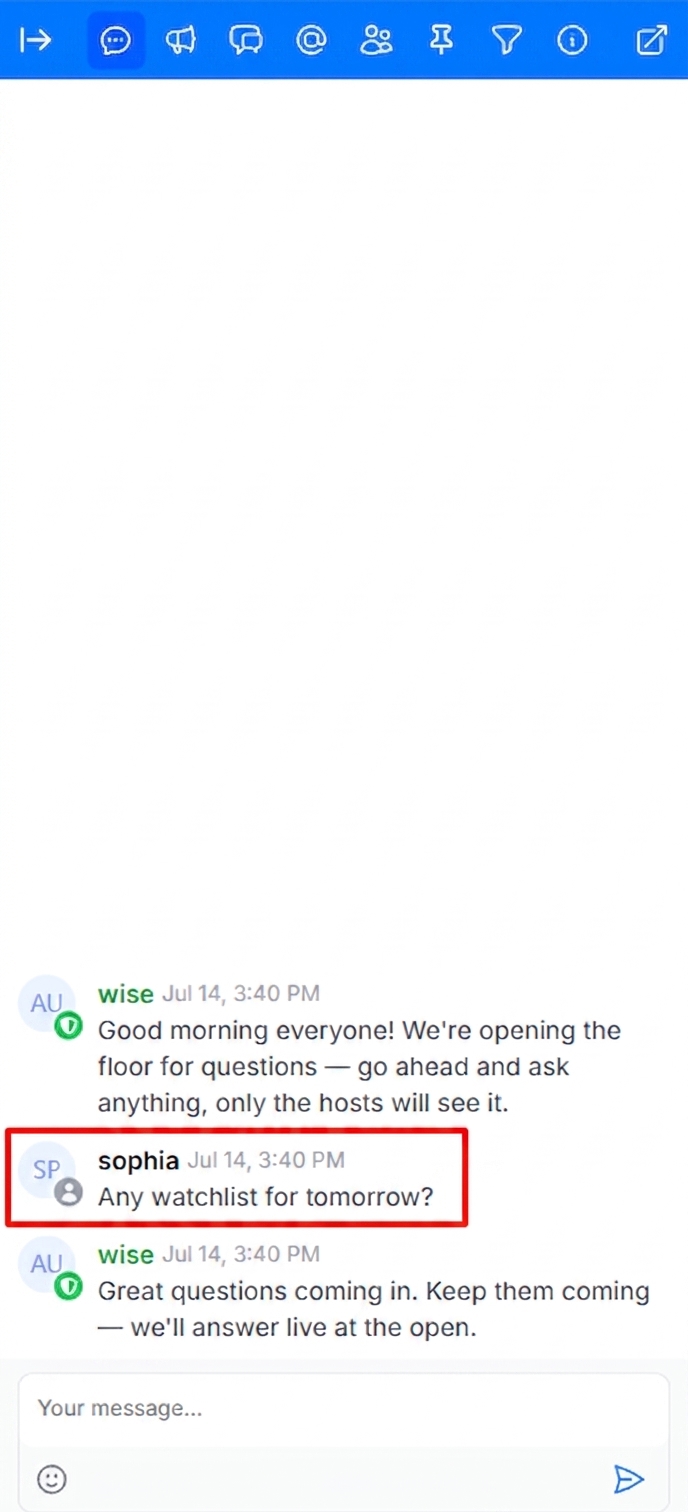
When Private Chat is on:
- Attendees see every moderator message (welcomes, answers, announcements).
- Attendees see their own messages.
- Attendees do not see messages from other attendees.
- Attendees can send messages normally they just go privately to moderators.
For an attendee, chat looks like a one-on-one conversation with the moderator team.
What Moderators See
Moderators see everything:
- All moderator messages
- Every attendee’s private messages, from every attendee
- All guest messages
Moderators can respond to a specific attendee by @mentioning them that reply is delivered privately to that attendee only. To broadcast a reply to the whole room, moderators use `@everyone` or simply send a message without a mention.
Step 5: Make an Attendee’s Message Public
If an attendee asks a great question that everyone would benefit from seeing, you can promote it to the whole room.
- Hover over (or tap) the private message in the chat.
- Open the message actions menu.
- Click Make Public.

> Expected Result: The message is instantly visible to every attendee in the room. It appears in the chat history for everyone as if the attendee had posted it publicly.
Pro Tip: Making a message public is a great way to build a live Q&A. Attendees ask privately, you curate the best questions, and only the answered ones become visible to the audience.
Turning Private Chat Off
To return the room to normal chat, open the settings panel again and toggle Private Mode off.
Note: turning Private Mode off does not retroactively make old private messages visible to other attendees. Each message keeps the privacy state it had when it was sent. Only moderators (or messages explicitly made public with Make Public) will ever see them.
Tips & Best Practices
- Set expectations up front. When starting a Private Chat session, post a public moderator message like “This chat is in private mode your messages are only visible to the hosts. We’ll share great questions with everyone.”
- Use Private Chat for live Q&A. Attendees are more willing to ask questions when they know the whole audience isn’t watching. Curate and publish the best ones.
- Combine with Chat Paused for structured events. Enable both to fully control when and what appears in chat during keynotes or presentations.
- Prepare a moderator team for busy rooms. In a large room, private messages can pile up quickly. Multiple moderators can respond in parallel every moderator sees every private message.
- Use @everyone to broadcast. When you want your reply to be seen by everyone (not just the person you’re answering), include `@everyone` in your message.
- Quote to keep replies private. Replying to a quoted private message keeps your reply private and delivers it back to the original sender.
Summary
Private Chat gives you a moderator-attendee chat channel inside any room:
- Enable Private Mode in the room settings.
- Attendees see only their own messages and moderator messages.
- Moderators see every message from every attendee.
- Use Make Public to promote great questions to the whole room.
- A red Private mode banner reminds moderators the room is in private mode.
Use it for Q&A, coaching, help desks, and any live event where you want an open channel to your audience without exposing every attendee’s questions to the whole room.